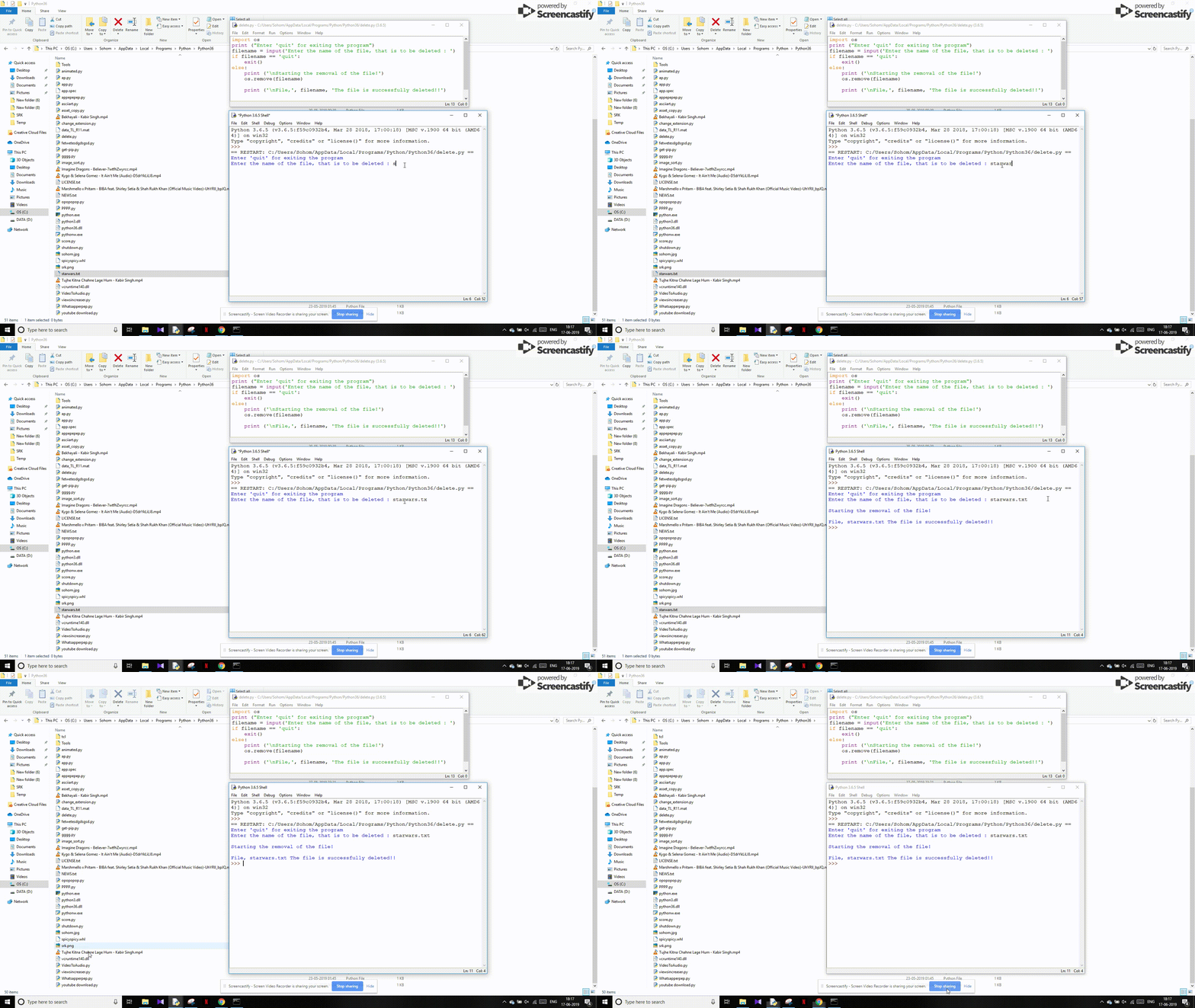

Managing files efficiently is a crucial aspect of programming, and Python provides robust tools to handle file operations seamlessly. One common task is the Python Remove File operation, which involves deleting files from the filesystem. This process can be essential for cleaning up temporary files, removing outdated data, or freeing up disk space. In this post, we will explore various methods to remove files in Python, along with best practices and considerations to ensure smooth and error-free file deletion.
Understanding File Removal in Python
Python offers several ways to remove files, each suited to different scenarios. The most straightforward method is using the built-in os module, which provides a simple and effective way to delete files. Additionally, the pathlib module, introduced in Python 3.4, offers an object-oriented approach to file system operations, including file removal.
Using the os Module to Remove Files
The os module is part of Python's standard library and provides a portable way of using operating system-dependent functionality. The os.remove() function is used to delete a file. Here is a basic example:
import os

# Specify the file path
file_path = 'example.txt'

# Remove the file
os.remove(file_path)
This code will delete the file located at example.txt. If the file does not exist, an FileNotFoundError will be raised. It's important to handle such exceptions to make your code more robust.
💡 Note: Always ensure that the file path is correct and that the file exists before attempting to delete it to avoid errors.
Handling Exceptions
When working with file operations, it's crucial to handle potential exceptions gracefully. Here's how you can handle exceptions when using os.remove():
import os

file_path = 'example.txt'

try:
    os.remove(file_path)
    print(f"File {file_path} has been removed successfully.")
except FileNotFoundError:
    print(f"Error: The file {file_path} does not exist.")
except PermissionError:
    print(f"Error: You do not have permission to delete the file {file_path}.")
except Exception as e:
    print(f"An unexpected error occurred: {e}")
This code snippet includes error handling for common issues such as the file not existing or insufficient permissions. The generic Exception handler catches any other unexpected errors, ensuring that your program can handle a wide range of issues gracefully.
Using the pathlib Module
The pathlib module provides an object-oriented approach to handling filesystem paths. It is more modern and often preferred for its readability and ease of use. To remove a file using pathlib, you can use the unlink() method. Here is an example:
from pathlib import Path

# Specify the file path
file_path = Path('example.txt')

# Remove the file
file_path.unlink()
This code achieves the same result as the os.remove() method but with a more intuitive and readable syntax. The Path object represents the file path, and the unlink() method deletes the file.
💡 Note: The unlink() method will also raise a FileNotFoundError if the file does not exist, so it's important to handle exceptions similarly to the os.remove() method.
Removing Directories
Sometimes, you may need to remove an entire directory along with its contents. The os module provides the os.rmdir() function for this purpose, but it only works if the directory is empty. For non-empty directories, you can use the shutil.rmtree() function, which recursively deletes a directory and all its contents.
Here is an example of using shutil.rmtree():
import shutil

# Specify the directory path
directory_path = 'example_directory'

# Remove the directory and its contents
shutil.rmtree(directory_path)
This code will delete the directory located at example_directory along with all its files and subdirectories. Be cautious when using shutil.rmtree() as it permanently deletes the directory and its contents without any confirmation.
⚠️ Note: Always double-check the directory path before using shutil.rmtree() to avoid accidental data loss.
Best Practices for Python Remove File Operations
When performing Python Remove File operations, it's essential to follow best practices to ensure data integrity and avoid errors. Here are some key considerations:
- Verify File Paths: Always double-check the file paths to ensure you are deleting the correct files.
- Handle Exceptions: Implement robust exception handling to manage errors gracefully.
- Backup Important Data: Before deleting files, consider backing up important data to prevent accidental loss.
- Use Descriptive Variable Names: Use clear and descriptive variable names to make your code more readable.
- Avoid Hardcoding Paths: Use environment variables or configuration files to manage file paths dynamically.
Comparing os and pathlib for File Removal
Both the os and pathlib modules are powerful tools for file operations in Python. Here is a comparison to help you decide which to use:
| Aspect | os Module | pathlib Module |
|---|---|---|
| Syntax | Function-based | Object-oriented |
| Readability | Less readable | More readable |
| Error Handling | Requires manual handling | Integrated with object methods |
| Compatibility | Python 2 and 3 | Python 3.4 and later |
While the os module is more compatible with older versions of Python, the pathlib module offers a more modern and intuitive approach. If you are working with Python 3.4 or later, pathlib is generally the preferred choice for its readability and ease of use.
Advanced File Removal Techniques
In some cases, you may need more advanced file removal techniques. For example, you might want to delete files based on certain criteria, such as file age or size. Here are a couple of advanced techniques:
Deleting Files Based on Age
You can delete files that are older than a certain number of days using the os.path.getmtime() function to get the last modification time of a file. Here is an example:
import os
import time

# Specify the directory and age threshold in days
directory_path = 'example_directory'
age_threshold = 30  # 30 days

# Get the current time
current_time = time.time()

# Iterate through files in the directory
for filename in os.listdir(directory_path):
    file_path = os.path.join(directory_path, filename)
    if os.path.isfile(file_path):
        # Get the last modification time of the file
        file_mtime = os.path.getmtime(file_path)
        # Calculate the age of the file in days
        file_age = (current_time - file_mtime) / (24 * 3600)
        # Delete the file if it is older than the threshold
        if file_age > age_threshold:
            os.remove(file_path)
            print(f"Deleted old file: {file_path}")
This script will delete all files in the specified directory that are older than 30 days. You can adjust the age_threshold variable to set a different age limit.
Deleting Files Based on Size
Similarly, you can delete files based on their size using the os.path.getsize() function. Here is an example:
import os

# Specify the directory and size threshold in bytes
directory_path = 'example_directory'
size_threshold = 1024 * 1024  # 1 MB

# Iterate through files in the directory
for filename in os.listdir(directory_path):
    file_path = os.path.join(directory_path, filename)
    if os.path.isfile(file_path):
        # Get the size of the file
        file_size = os.path.getsize(file_path)
        # Delete the file if it is larger than the threshold
        if file_size > size_threshold:
            os.remove(file_path)
            print(f"Deleted large file: {file_path}")
This script will delete all files in the specified directory that are larger than 1 MB. You can adjust the size_threshold variable to set a different size limit.
💡 Note: Be cautious when using these advanced techniques, as they can result in the deletion of important files if not configured correctly.
In conclusion, managing file removal in Python is a straightforward process with the right tools and techniques. Whether you choose the os module for its simplicity or the pathlib module for its readability, understanding how to handle exceptions and follow best practices will ensure that your file removal operations are smooth and error-free. By leveraging Python’s powerful file handling capabilities, you can efficiently manage your files and keep your system organized.
Related Terms:
- python os remove
- python remove file pathlib
- python remove file if exist
- python remove file extension
- python remove file shutil
- python file exist delete